


 featureHome Screen Widgets
SlimAI Home Screen Widgets: Your Day, Before You Open Anything
Calories left as a ring banded by macro, a water glass you can top up with one tap without opening the app, your logging streak, and your coach's next line — on the home screen, the lock screen, and the Dynamic Island.
The hardest part of calorie tracking is not the logging. It is remembering that you are tracking at all. Every missed day starts the same way: the app is two swipes and a folder away, and by the time you think about it you are three meals behind.
Widgets fix that by inverting it. Instead of you going to the app twenty times a day, the number that matters — how much of your day is left — sits on the screen you already unlock a hundred times. And when the action is small enough, you do not have to open anything at all: a glass of water logs straight from the tile.
Last updated

3-day free trial · Cancel anytime · No card charged during trial
A Calorie Ring That Says What the Calories Went On
Every calorie widget in the store draws the same thing: one arc, one colour, one number in the middle. It tells you how much of your budget is gone — which you can already read from the number it is wrapped around. The ring is decoration.
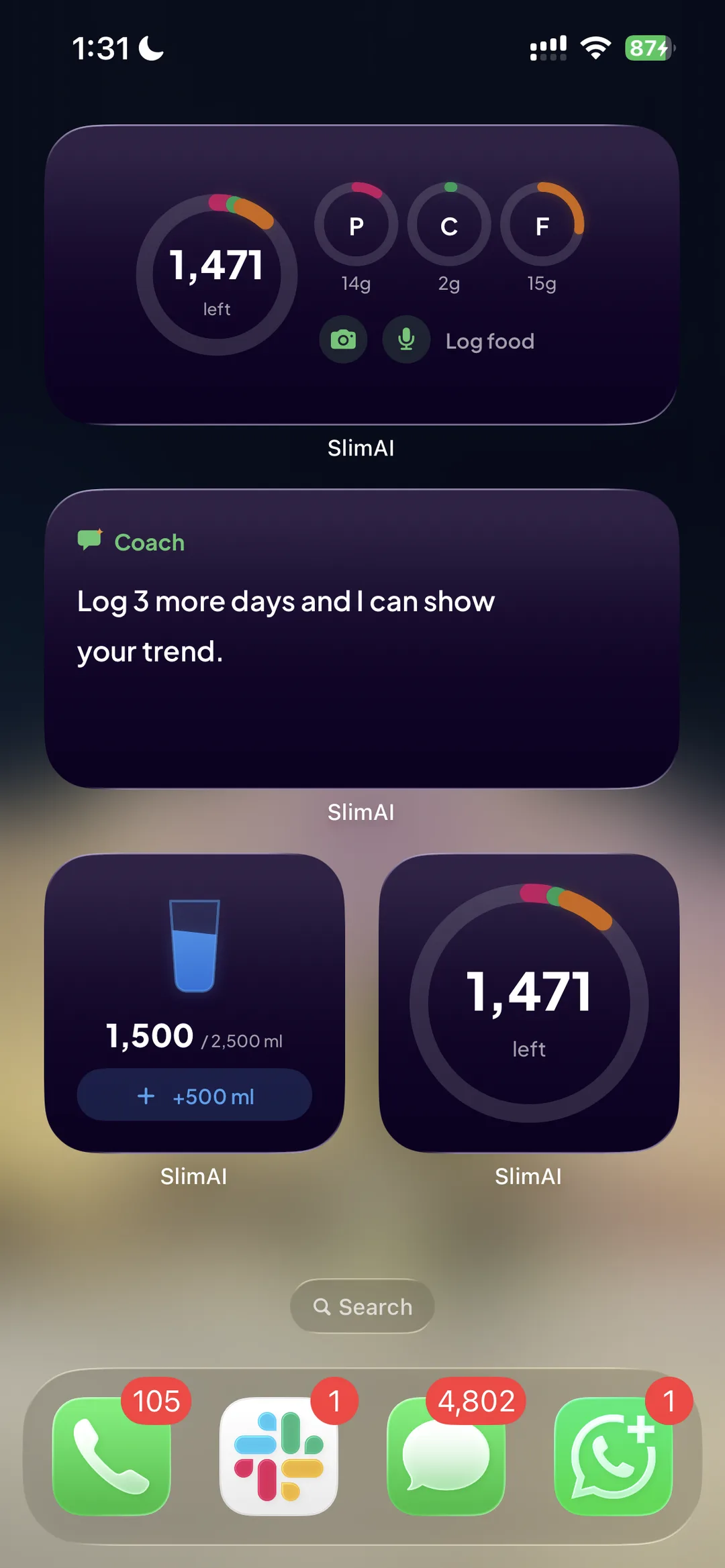
SlimAI's ring carries a second fact for free. The arc is split into three segments — protein, carbohydrate, and fat, in the same three colours the app's own dashboard uses — whose combined length is your day's progress. The sweep tells you how much of the budget is gone; the banding tells you what it went on. A high-fat day and a high-protein day at the same total look different at a glance, which is exactly the work a glance surface should be doing.
The split is computed inside the app using the 4/9/4 kilocalorie-per-gram weighting and a rounding rule that keeps the three parts summing to a hundred, then handed to the tile already resolved. Banding on grams instead of energy misreads a fatty day badly, so the widget is never allowed to derive it.
Eaten, burned, and what is left
The tile shows your target, what you have eaten, what you have burned, and the remaining number — already netted, using the same add-back-exercise-calories setting you chose in the app.
Over budget looks different, not just longer
Going over is the one state that changes hue, and the banding collapses to a single alarm colour. "Done" and "too far" must never look alike on a home screen.
Hitting the target is a state, not a rounding
Reaching your goal widens the halo around the ring and shows a goal-met marker. It is deliberately not driven by the clamped progress value, so the widget cannot congratulate you for overeating.
A wide tile with the macros spelled out
The medium size sets three smaller rings beside the main one — P, C and F with their grams — plus a camera and a microphone button that jump straight into scanning or voice logging. On Android the same layout is chosen automatically once the tile is wide enough, and redrawn when you resize it.
Log Water Without Opening the App
This is the only place in SlimAI where a tap outside the app writes your data, and it is built for correctness before speed. The water tile carries a plus button sized to the utensil you actually use — the 200 ml glass or the 500 ml bottle you configured — and tapping it logs the drink from the home screen.
On iOS 17 and later that runs as a real in-widget action with no app launch; below that the same tap deep-links into the app instead of silently doing nothing. On Android the button broadcasts back to the tile, which redraws in place. Either way you never leave the screen you were on.
The tile fills a glass rather than sweeping a ring, because the question is how full you are, not how far round a clock. A half-full glass reads as half-full to anyone.
It works with the app closed
Each tap appends an operation with its own id to a queue in shared storage and updates the tile immediately. The app drains that queue the next time it is opened.
It works offline
The queue survives the app being killed and the device having no connection. Five taps in a row are five queued operations, not one racing write.
It cannot double-count
Draining is idempotent by operation id, so an app that dies halfway through a sync and sees the same tap twice still logs it once.
Truth wins over the optimistic number
After draining, the snapshot is rebuilt from your real stored data. If the tile's instant update and your account disagree, the account wins and the widget corrects itself.
Ready to try Home Screen Widgets?
Available on iOS and Android, including lock screen and Dynamic Island.
3-day free trial · Cancel anytime · No card charged during trial
A Streak That Does Not Punish You at Midnight
The streak tile shows the run you are on right now, your longest, and how many days you have logged — and it answers a different question from the streak inside the stats screen, on purpose. Stats is always scoped to the week or month you are looking at; a home screen has no scope bar, so the widget asks "how many days in a row am I on" and computes it separately rather than borrowing a number that means something else.
A day you have not logged yet does not break the run. Zeroing your streak at 00:01 would tell you that you had lost something you still had all day to keep, so the streak stays alive until the day is actually over.
What it does instead is warn you. After six in the evening, with nothing logged and a streak on the line, the tile switches to an at-risk state. That is the moment a nudge is worth anything — early enough to eat and log, late enough that it is genuinely at risk.
Fasting on the Lock Screen and the Dynamic Island
A fasting timer is the one number in a tracker that changes every second, and it is useless if you have to open an app to read it. SlimAI runs the fast as a persistent system surface instead: a Live Activity on iOS — which is also what appears in the Dynamic Island — and an ongoing notification with a live chronometer on Android.
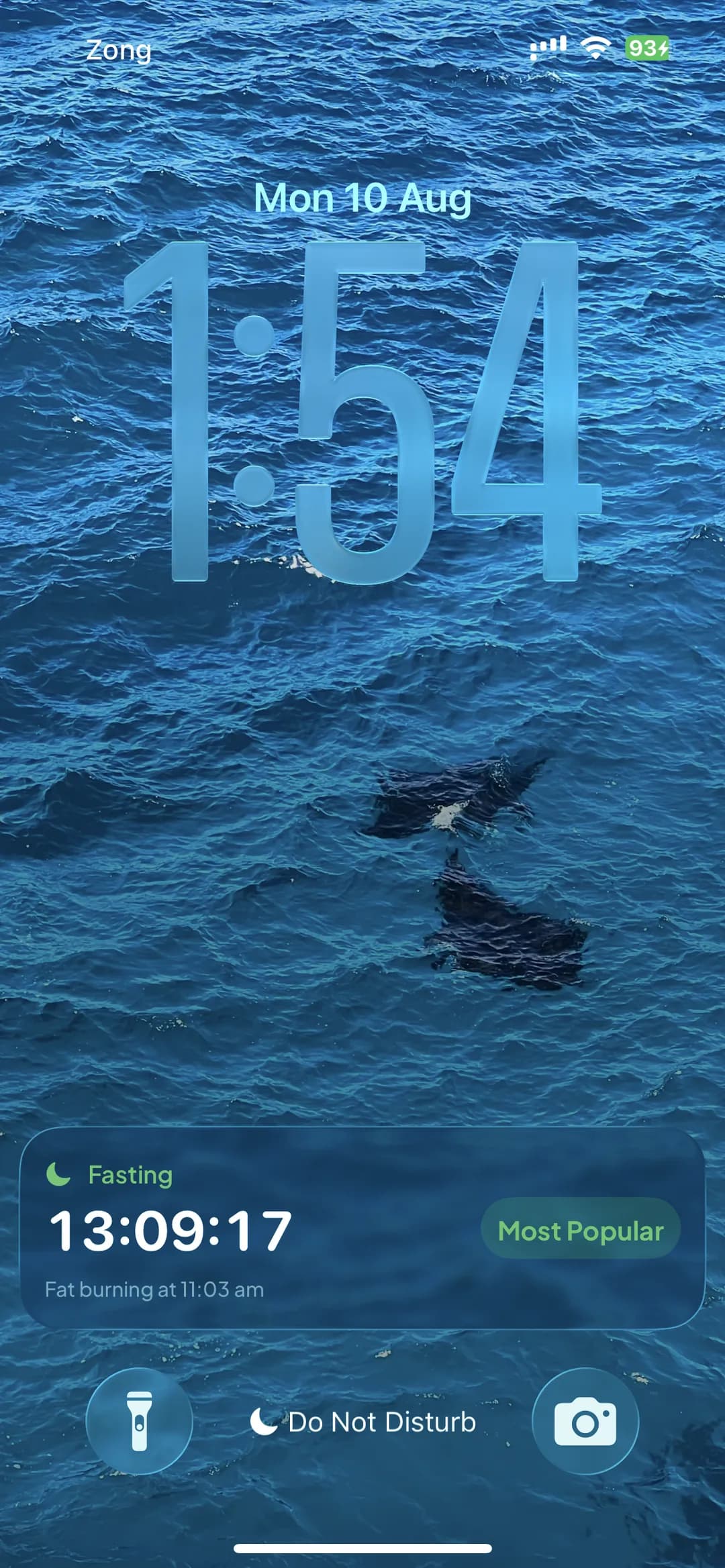
It carries four things and nothing else: that you are fasting, the time left in your window ticking live, which plan you are on, and the clock time your fat-burning phase begins. That last one is a time of day rather than a second countdown on purpose — "Fat burning at 11:03 am" is something you can plan a morning around, while a second timer counting toward another second timer is noise.
Neither one costs you battery to keep ticking. SlimAI hands the system the two moments that matter — when your window ends, and when the fat-burning phase starts — and the platform counts down natively. The app is not woken once a second to redraw a clock, which is precisely why the surface can afford to be persistent at all.
The Android version is a purpose-built notification rather than a copy of the iOS card: the flame badge, your plan, a large live countdown, a progress bar in brand green, and the start and end of your window. It deliberately does not wrap itself in a dark branded card, because a notification is inflated into the system's own shade and a mismatched card reads as a rendering bug rather than a brand.
The 12-hour switch is announced
The moment your fast crosses into the fat-burning phase the surface updates and an alert fires, so the milestone lands even if you are not looking at the screen.
Lock screen accessories on iOS
Circular, rectangular, and inline accessories put calories left or your fast on the lock screen itself, next to the clock.
You can switch it off, mid-fast
A persistent surface needs an off switch, and turning it off during a fast tears it down immediately instead of leaving it on your lock screen for another fifteen hours. Turning it back on republishes from the live fast, so the countdown returns without waiting for the next plan.
Your Coach's Next Line, on the Home Screen
The coach tile carries one written insight from the same deterministic rules that drive the coach card inside the app — the one sentence about your week and the one thing worth doing about it. It has its own glyph, a speech bubble with a spark, rather than borrowing the streak flame: a written insight looks like a bubble everywhere else on a phone, and two tiles sharing an icon read as the same widget in the picker.
It inherits the coach's honesty rules along with its sentences. When there is not enough data to say anything true, the tile says exactly that — "Log 3 more days and I can show your trend" — instead of filling the space with a number it cannot stand behind. A widget that invents an insight to avoid looking empty is worse than one that tells you what unlocks it.
It is the smallest possible version of the thing SlimAI is actually for. A tracker that only adds numbers up leaves the interpretation to you; the point of putting the coach on the home screen is that the interpretation arrives without being asked for.
The Prompt Comes After You Have Earned It
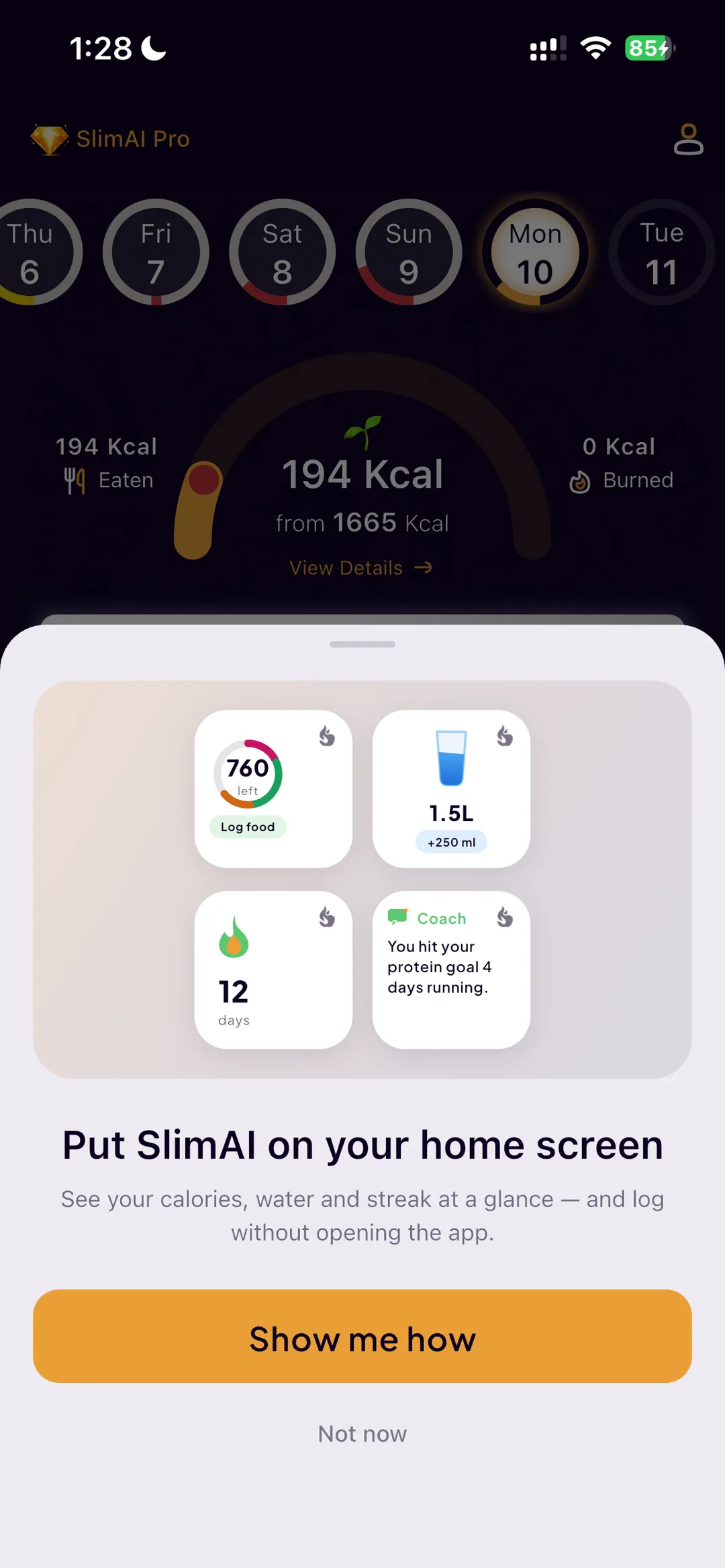
Widgets have terrible organic discovery. Most people never find them, which is why almost every app that ships them asks you to add one during onboarding — the single worst moment to ask, because you have no data yet and no reason to want a tile showing zeros.
SlimAI waits until your first three-day logging streak. By then the tiles have something true to show, and the ask is about keeping something you are already doing rather than starting something you are not.
It is capped hard: at most twice, at least 14 days apart, and never again once you have actually added one. That cap is also why the tutorial has a permanent home in settings — a prompt you can only see twice needs a door that does not close.
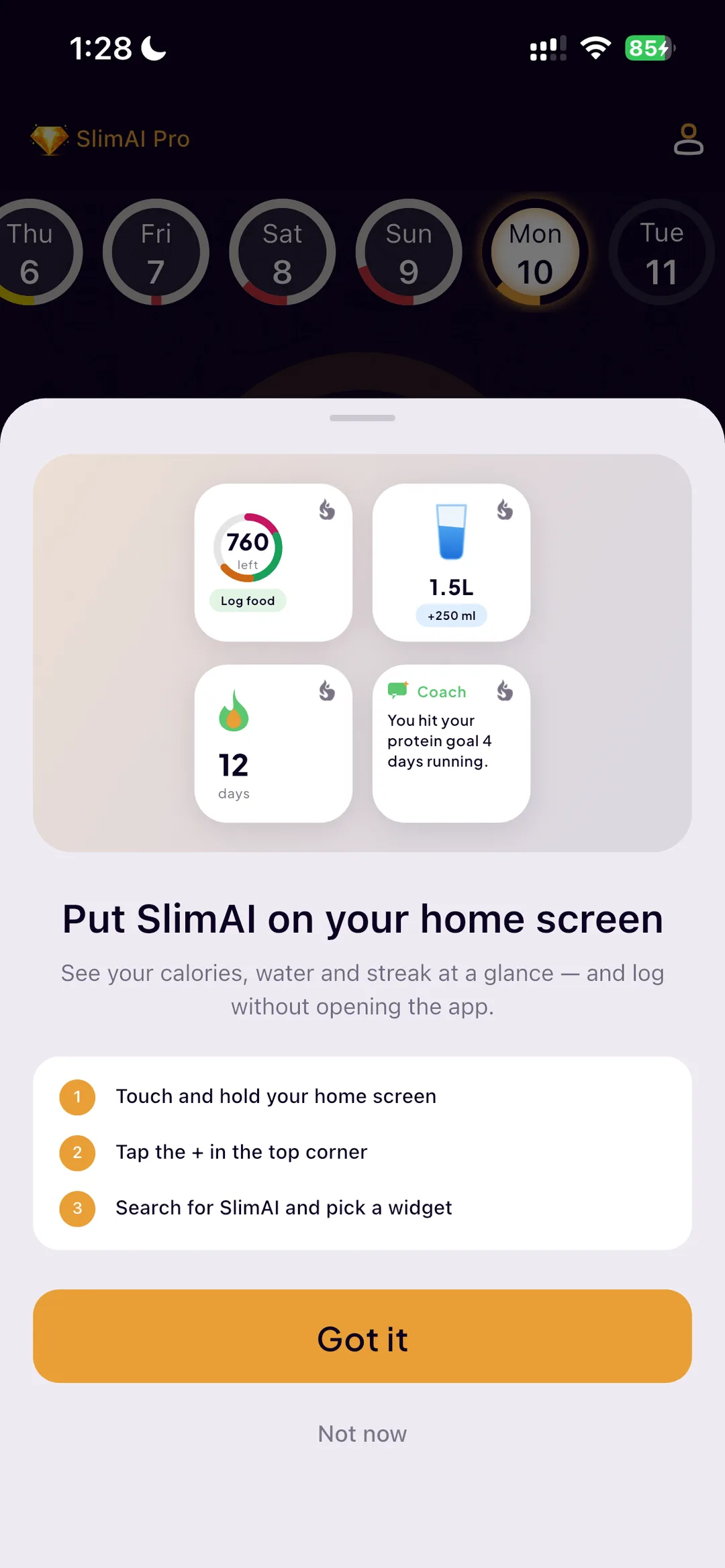
Adding One Takes Three Steps
On Android SlimAI can ask the launcher to place a tile for you, so adding one is a single tap — and because that request can only ever offer one widget, the sheet asks which one you want first rather than picking for you.
iOS has no equivalent API. No app can put a widget on your home screen there, so the honest answer is to show you the gesture instead of pretending: touch and hold the home screen, tap the plus in the corner, search for SlimAI, and pick a tile. Three steps, spelled out, with the tiles you are choosing between sitting right above them.
The Widget Knows Nothing It Was Not Handed
Widgets on both platforms run outside the app, in their own process. SlimAI's tiles have no network access, no database connection, and no account session — they render a snapshot the app wrote earlier and nothing else. There is no "fetch on refresh", by design and by platform.
That has a consequence worth stating: every decision a tile appears to make is actually made inside the app in advance. Whether a tile is locked, whether a trial is still running, how many calories remain after exercise, what your current streak is, how the macro banding splits — all resolved in the app, written into the snapshot, and rendered dumbly. No business rule crosses into native code, so the widget cannot drift away from the app's own answer.
It also has to be honest about time. The snapshot records which day its numbers describe. Cross midnight without opening the app and the tile renders an empty new day — consumption back to zero, while your target, your goal, and your streak carry over, because a new day does not change those. It never leaves yesterday's totals up pretending they are today's.
Signed out means blank, not stale
Signing out clears the shared snapshot, so a tile on a shared device stops showing numbers rather than freezing the last ones it saw.
Seven languages, resolved in the app
The handful of words a tile renders are translated inside the app and shipped in the snapshot. One caveat worth knowing: the system resolves widget-gallery text against your device language, while in-app copy follows the language you picked in SlimAI.
Turned off means turned off
Switching a tile off in settings stops SlimAI writing to it and blanks it. It cannot make the tile disappear — neither platform lets an app remove a widget you placed — so the setting says plainly that removing it is a job for a long press on the home screen.
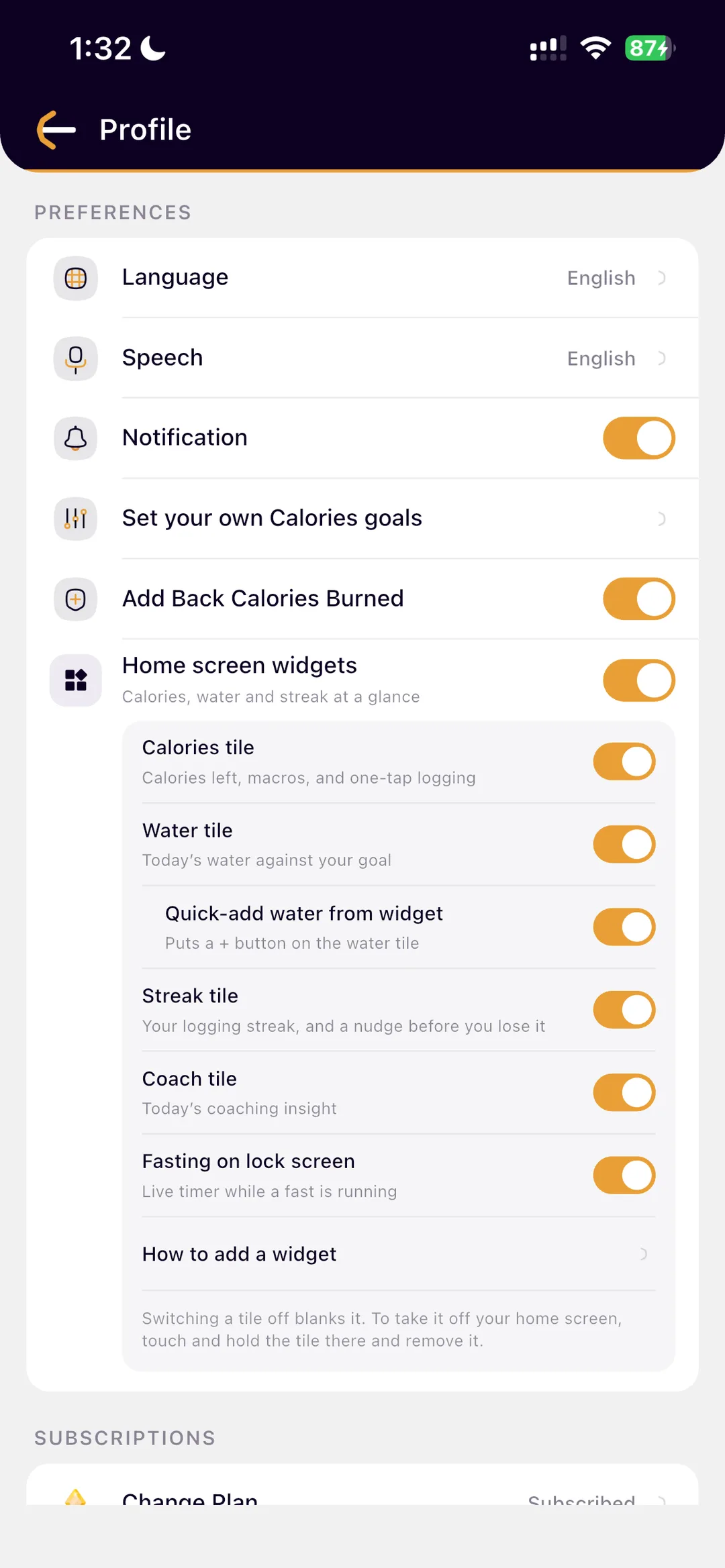
Four Tiles, and Switches for All of Them
Widgets are opinionated by nature — they take space on a screen you curated. So every tile has its own switch in SlimAI's settings, under Profile, alongside a master switch that stops the app pushing anything at all.
Calories, Water, Streak, and Coach each turn on and off individually. The quick-add water button sits indented underneath the water row, because whether the tile appears and whether it carries a plus button are two different questions, and as flat siblings they read as one. The fasting lock-screen surface has its own switch, and "How to add a widget" reopens the tutorial for anyone who dismissed the prompt.
The note at the bottom of that card is there because no app can do what people will expect this switch to do. Neither iOS nor Android lets SlimAI remove a tile you placed, so switching one off blanks it and tells you to remove it from the home screen yourself.
These preferences are stored on the device rather than on your account, deliberately. A widget lives on one device; syncing the choice to your account would let switching it off on your phone silently blank the tiles on your tablet.
What Is Free and What Is SlimAI Pro
The rule is simple: the inputs are free, the insight is Pro. The small calorie ring and the interactive water tile are the habit that makes tracking work at all, and gating those would lose the user before they ever reached anything worth paying for.
SlimAI Pro covers the wide calorie tile with macros and quick actions, the streak tile with its at-risk warning, the lock-screen accessories, the fasting Live Activity, and the coach card. Adding one of those unlocks it fully for seven days before it locks — and a locked tile shows your real numbers blurred rather than a generic upgrade card, because a value you already own and cannot quite read is the honest version of an upsell.
Explore More SlimAI Features
 FAQ
FAQ
Still Wondering About SlimAI
 Does SlimAI have a home screen widget?
Does SlimAI have a home screen widget?Yes — four of them, on both iOS and Android. A calorie ring showing your target, eaten, burned, and remaining, with the arc banded by protein, carbohydrate, and fat; a water tile with a one-tap add button; a logging streak tile with an at-risk warning; and a coach tile carrying one written insight. iOS additionally supports lock-screen accessories in circular, rectangular, and inline forms.
Can I log water without opening SlimAI?
Can I log water without opening SlimAI?Yes. The water widget carries a plus button set to your chosen utensil size, and on iOS 17 and later tapping it logs the drink without launching the app; on Android it logs and redraws the tile in place. Taps are queued with their own ids, so they survive being offline and the app being closed, and cannot be counted twice when the app next syncs. On older iOS versions the same tap opens the app instead of doing nothing silently.
Does SlimAI support the iOS Dynamic Island and Live Activities?
Does SlimAI support the iOS Dynamic Island and Live Activities?Yes, for fasting. Starting a fast publishes a Live Activity, which is also what appears in the Dynamic Island, showing the time left in your window ticking live, the plan you are on, and the clock time your fat-burning phase starts. The system ticks the timer natively rather than the app redrawing it, and an alert fires when your fast crosses into the fat-burning phase. Android gets the equivalent as an ongoing notification with a live chronometer and a progress bar. Both can be switched off in settings, and switching off mid-fast removes the surface immediately.
Do SlimAI widgets update after midnight if I do not open the app?
Do SlimAI widgets update after midnight if I do not open the app?Yes, and they roll over honestly. Every snapshot records which day it describes, so once the date moves on the tile renders a fresh empty day — consumption back to zero — while your target, goal, and streak carry over, because a new day does not change those. It never leaves yesterday's totals up as if they were today's.
Do the widgets drain my battery?
Do the widgets drain my battery?No, because nothing about them polls. The widgets never fetch anything — they render a snapshot the app writes when your data actually changes, and writes are batched so a burst of logging costs one update. The fasting countdown is handed to the system as start and end times and ticked by the platform, so a sixteen-hour fast costs one post and one cancel rather than a redraw every second.
Are SlimAI widgets free?
Are SlimAI widgets free?The small calorie ring and the interactive water tile are free — they are the daily habit, and gating those would defeat the point. SlimAI Pro covers the wide calorie tile with macros and quick actions, the streak tile with its at-risk state, the lock-screen accessories, the fasting Live Activity, and the coach tile. Adding a Pro tile unlocks it fully for seven days first, and a locked tile shows your own numbers blurred rather than an empty upgrade prompt.
Can I choose which SlimAI widgets appear?
Can I choose which SlimAI widgets appear?Yes. Profile settings carry a master switch plus an individual switch for the calorie, water, streak, and coach tiles, a separate toggle for the water quick-add button, a toggle for the fasting lock-screen surface, and a "How to add a widget" entry that reopens the tutorial. These are stored per device rather than on your account, because a widget lives on one device and switching it off on your phone should not blank the tiles on your tablet.
How do I add a SlimAI widget?
How do I add a SlimAI widget?On Android, SlimAI can ask your launcher to place the tile for you — one tap, after you pick which widget you want. On iOS no app is allowed to add a widget for you, so SlimAI shows the three steps instead: touch and hold your home screen, tap the plus in the top corner, then search for SlimAI and pick a tile. SlimAI offers this after your first three-day logging streak rather than during signup, at most twice and at least 14 days apart, and never again once you have added one — and because that cap is deliberate, "How to add a widget" stays permanently available in Profile settings.
Can the widget see my data if I am signed out?
Can the widget see my data if I am signed out?No. The widget process has no network access, no database connection, and no account session — it can only render the snapshot the app last wrote to shared device storage. Signing out clears that snapshot, so the tile shows nothing rather than the last numbers it happened to have.
Start logging smarter with AI Meal Logging.
Log any meal, any way. Get instant calories and macros. Build the habit that sticks.
Free 3-day trial, then $7.99/month or $29.99/year. Cancel anytime.
- 50K+ food items in the food database
- 10K+ downloads on iOS and Android
- 7 languages
- 4.5★ App Store · 4.8★ Google Play (as of September 3, 2026)